Table of Contents
2. Organizational Structure Settings on Company Level
When you change the data on the tabs of the Organizational Structure, the OK button is enabled. The changes are committed to the database only if you click the button.
2.1. General Settings tab
On the company level general settings can be specified that apply to the entire Produmex WMS add-On.

Language
This includes the standard language (the language that is used by default on the thin clients, unless specified otherwise at the individual user level (cfr. Administration → Users).
Company Logo URL
A reference to the company logo can be added to the field. The path points to a shared folder which contains the company logo used on the login page of the Mobile Client.
DB credentials
The standard connection to the SAP Business One database (username / password). It needs to be set for reporting purposes.
Logistic carriers
It is also possible to define whether logistic carriers (pallets, containers, …) are stored at one location per warehouse (where they are stored after emptying) and what the standard quality status for logistic carriers is.
- Store logistic carriers on 1 storage location by warehouse
When this option is enabled, logistic carriers are stored at one location per warehouse. Set the default storage location for logistic carriers on the Warehouse level.
This setting should be enabled in order to use logistic carriers properly. - Move all logistic carriers on reception
When this option is enabled, logistic carriers are automatically moved to the default storage location of the logistic carriers after the reception.
This setting is only active if the ‘Store logistic carriers on 1 storage location by warehouse’ option is enabled. - Quality status for logistic carriers
Select the standard quality status for logistic carriers from the dropdown menu.
Transport services
These global settings can be overruled on the SAP Shipping types.
- Select Driver When Loading
If the setting is enabled, the name of the driver must be specified or selected when loading. - Select License Plate When Loading
If the setting is enabled, the license plate of the transport vehicle must be recorded. - Select Trailer Number When Loading
If the setting is enabled, the trailer number of the transport vehicle must be recorded.
Goods receipt requires suppl. ref
If the setting is enabled, the operator is asked to enter a supplier reference number during the goods reception process.
- The setting applies to the Reception Flow and Bulk Reception Flow.
- During the flows the system displays a separate Supplier Ref. screen after selecting a supplier and it is mandatory to enter the supplier reference number.
- With the end of the flow the reference number is added to the Vendor Ref. No. field of the created Goods receipt PO document.
Goods receipt automatically prints item labels
If the setting is enabled, the goods receipt on scanner automatically prints item labels. The number of labels printed, is the received number of items. Otherwise the user is asked if printing is needed.
Use inventory returnable items on documents
If the setting is enabled, the returnable item added to the document will be the inventory item.
Note: Depending on the Use Perpetual Inventory setting of the Company Details window of SAP Business One, returnable items work differently in Produmex WMS.
- If the setting is enabled, it is possible to add non-inventory items to the documents based on the Use inventory returnable items on documents setting.
- If the setting is disabled, then inventory returnable items are added to the documents regardless of Use inventory returnable items on documents setting.

Set vat group returnable items on documents
If the setting is enabled, the VAT group of the returnable item will be set when added to the document. For purchase this will be OITM.VatGroupPu and for sales this will be OITM.VatGourpSa.
Check to add returnable items
If the setting is enabled, the system will try to add returnable items when booking a document. To avoid this check this can be unticked.
Disable item selection in flows
If the setting is enabled, it will not be possible to select an item on scanner/touchscreen. The user will always have to scan a barcode to identify the item.
Pick list proposal allowed to exceed order
If the setting is enabled, it is possible to adjust the quantity of the proposal, so it exceeds the ordered quantity.
Do not lock stock on picking (picklists can be created even if no stock is available)
When proposals are made, stock is locked. If the setting is enabled, the system does not lock stock when creating the proposal. This means that there is no more check of available quantity, so proposals can be made, even if there is not enough quantity.
Note:
- Picking can only happen through the Ad Hoc Picking Flow.
- This option does not apply to picklists for production. These picklists will have locking.
- If the Do not lock stock on picking setting is enabled, make sure that you disable the Make Picklist ready before print? setting on the picklist controller.
Allow overpicking
If the setting is enabled, you can pick more items than specified in the sales order/picklist. This can be done for convenience purposes, e.g. if an order for 14 items is received and the packaging unit for that item is a box of 15 items. In such a case, picking a whole box may be more convenient than opening the box and taking one item out.
This option is available for Picking, Zone picking, Multi picking and Ad hoc picking tasks Route and Pick List.
Overpicking is not allowed when picking an alternate stock.
Allow overpicking (Customer collect)
If this setting is enabled, the operator will be able to pick more items than specified in the sales order/pick list in the Ad hoc picking – Customer collect flow.
Count colli after picking
As a further check to ensure the correctness of deliveries, it can be specified that the operator has to count and enter the number of colli that were picked and put onto a logistic unit (SSCC), which the operator wishes to finish. The system will then verify whether this number is the same as the number of colli it has recorded during the picking process onto this logistic unit (SSCC). The count is done in the inventory UoM.
When this is ticked, it can be configured how many times the user can enter an incorrect count.
When this maximum is reached, the picked SSCC is considered unpicked, and a new picklist is created for these items, forcing the user to pick again.
Embed .NET forms in SBO forms
If the setting is enabled, all forms run within SAP.
But in some cases it is useful if some screens are not embedded in SAP. In that case it is possible when you have 2 monitors to move certain screens outside of SAP on another monitor.
This can be done by unchecking this checkbox.
Some screens will be shown in the Windows taskbar, and will be outside of SAP.
Supported screens:
- Organizational structure
- Route planning
- Production manager
- Cycle count – Select location
- Cycle count – Process
Usability Improvement Program
The Usability Improvement Program (UIP) aims to give all Boyum IT customers the ability to contribute to the design and development of Boyum IT products.
By default, the setting is enabled and the add-on automatically sends information to Boyum IT about how the product is used. The information is used to improve the related features.
The gathered data sent to Boyum IT can be:
- feedback: generic information (e.g. SAP version, resolution) and add-on specific information (e.g. number of configurations)
- error
UIP does not send any business data, confidential information or user / customer information. For more information about UIP click here.
If the setting is enabled, an additional Usability Improvement Program tab is displayed in the Organizational Structure window with the following settings:
- Scheduled time to send data: the exact time of the day when information is sent
- Send errors only: If the setting is enabled, only errors are sent to Boyum IT.

Auto-Select Company
If the setting is enabled, the Company element is automatically selected when the Organizational Structure is opened.
Auto-Extend Company
If the setting is enabled, the Company subtree is automatically expanded to the highest level, which is usually the warehouse level, when the Organizational Structure is opened.
2.2. Defaults tab

Labels
In the default settings you can specify the standard labels for goods receipt, shipping and the standard item label.
Additional expenses generator
The setting is used to copy additional expenses, for example freight costs from a sales order/line to a sales delivery.
Generating additional expenses are supported in the following cases:
- Target document: Sales Delivery
Base document: Sales Order or Sales Invoice - Target document: Sales Invoice
Base document: Sales Order or Sales Delivery - Target document: Purchase Delivery
Base document: Purchase Order or Purchase Invoice
Note: The way the costs get divided on the base documents depends on the configuration within SAP. Produmex WMS does not handle it.
Default quality status reception
The default quality status for goods receipt.
This option can be overruled by settings on the item master data.
Released quality status reception
This setting is related to the setting “default quality status reception”. The setting defines the quality status of a batch number that is released in inventory. For example an item with a batch number is received in inventory with a quality status of quarantine (default quality status reception), if the item and batch number changed of quality status to released and the item with the same batch number is again received into inventory it will retrieve the quality status defined in the setting “Released quality status reception”.
This option can be overruled by settings on the item master data.
Quality status sales return
The default quality status for sales return.
This option can be overruled by settings on the item master data.
Quality status cycle counting
Defines the default status of items that are added to the inventory (Inventory Transaction → Goods Receipt) as a result of Cycle Counting (when a positive difference has been established between the actual physical stock in the warehouse and the administrative stock that was registered in SAP Business One). The cycle count default quality status is applied to any stock within or without the SSCC. (Except when the counted bin has a fixed quality status, the surplus stock then gets that quality status)
Quality status returnable items
The default quality status for returnable items.
This is used when inventory returnable items need to be added to the system.
2.3. Extension Parameters tab
On the Extension Parameters tab it is possible to define parameters for certain properties. The properties and the applicable extensions are listed in the Parameter Set, Property and Extension drop-down menus.
The Parameter Set duplication feature allows users to create independent parameter sets based on existing ones. Next to the Parameter Set drop-down menu, there is a “Duplicate” button that triggers the appearance of the modal form/window. This window includes an Original Parameter Set (read-only textBox) and a New Parameter Set (editable textBox). It provides an OK button and a Cancel button. Pressing OK performs the following actions:
- If the New Parameter Set is empty, the OK button is disabled to maintain data integrity.
- If the New Parameter Set is filled, the new parameter set is saved from memory to the database, and the Duplicate Parameter Set window is closed. The newly created parameter set is then loaded. Modifications made to the original parameter set are applicable to the duplicated set. The system supports seamless saving and reloading of modifications for the new parameter set.

Select a property and the applicable extension parameter and the related parameters are displayed.
With the Search Parameters field it is possible to filter the shown parameters. Only parameters that contain the entered characters are displayed.

The following sections describe the available properties and their extensions:
2.3.1. 3PL invoicing controller
2.3.2. Archiving controller
2.3.3. Barcode controller
2.3.4. Batch number 1 on company
2.3.5. Batch number 2 on company
2.3.6. Batch number generator for sales return
2.3.7. Batch number production company
2.3.8. Best before for production generator
2.3.9. Best before for reception generator
2.3.10. Checks controller
2.3.11. Container management controller
2.3.12. Create SAP delivery from PMX delivery controller
2.3.13. Cycle count controller
2.3.14. Document series controller
2.3.15. Freight charges controller
2.3.16. Incoming payment generator
2.3.17. Interface for PMX Advance Shipping Notice importer and exporter
2.3.18. Interface for PMX move im-/export
2.3.19. Interface for PMX move order im-/export
2.3.20. Interface for PMX pick list im-/export
2.3.21. Interface for PMX serial number im-/export
2.3.22. Interface for PMX stock QS change import
2.3.23. Interface for SBO business partner im-/export
2.3.24. Interface for SBO goods issue im-/export
2.3.25. Interface for SBO goods receipt im-/export
2.3.26. Interface for SBO incoming payment im-/export
2.3.27. Interface for sbo item master data im-/export
2.3.28. Interface for SBO production issue im-/export
2.3.29. Interface for SBO production receipt im-/export
2.3.30. Interface for SBO purchase credit note im-/export
2.3.31. Interface for SBO purchase delivery im-/export
2.3.32. Interface for SBO purchase invoice im-/export
2.3.33. Interface for SBO purchase order im-/export
2.3.34. Interface for SBO purchase return im-/export
2.3.35. Interface for SBO sales credit note im-/export
2.3.36. Interface for SBO sales delivery 2 im-/export
2.3.37. Interface for SBO sales delivery im-/export
2.3.38. Interface for SBO sales invoice im-/export
2.3.39. Interface for SBO sales order im-/export
2.3.40. Interface for SBO sales return 2 im-/export
2.3.41. Interface for SBO sales return im-/export
2.3.42. Interface for SBO whs transfer im-/export
2.3.43. Inventory controller
2.3.44. IPmxStockInterface - Pmx stock im-/export
2.3.45. Location controller
2.3.46. Minimum customer stock levels controller
2.3.47. Move controller
2.3.48. On consume for production controller
2.3.49. On release of route controller
2.3.50. On sales delivery creation
2.3.51. Open documents screen controller
2.3.52. Open Sales Orders Controller
2.3.53. Packing controller
2.3.54. Picklist robot
2.3.55. Picking for production controller
2.3.56. Picklist controller
2.3.57. Picklist proposal generator
2.3.58. Picklist proposal manager screen controller
2.3.59. Production controller
2.3.60. Proof of delivery controller
2.3.61. Purchase delivery generator
2.3.62. Put away for order generator
2.3.63. Put away for production generator
2.3.64. Put away for receive from warehouse generator
2.3.65. QS reception contr. on company
2.3.66. Receive from Whs controller
2.3.67. Replenishment generator
2.3.68. Report mailer
2.3.69. Route controller
2.3.70. Sales delivery note generator
2.3.71. Sales return generator
2.3.72. Sample generator
2.3.73. Serial number controller
2.3.74. Stock allocation controller
2.3.75. Track and trace controller
2.3.76. Warehouse automation controller
2.4. Production tab
When the product is produced, the quality status of the product is defined by the Quality Status Production setting on the Production tab of the Organizational Structure.
The available quality status in the drop-down menu are defined by the quality status list set on the Quality Status tab of the Organizational Structure.

2.5. SSCC tab
On the SSCC tab of the Organizational Structure the system shows the current SSCC number and the start and the end number of the range.
The fields prevent the user from entering more than 17 or non-numeric characters. The 18th character is automatically calculated as the check digit.

2.6. Reports tab
2.6.1. Overview
The Reports tab offers an overview of the standard reports that have been defined in Produmex.
It includes a reference to the shared folder (Report path, Coresuite report path) where the reports are stored and makes it possible to set the report parameters:
- Format in which the report is created (for example Crystal Reports, CoreSuite)
- Name
- Page size
- Orientation
- Type
- Path from the entered report path

2.6.2. Configuration
1. Select the format you wish to use from the Format drop-down menu:
- A) Crystal Reports: uses the reports you download with your Produmex installation file.
- B) Crystal Reports by SAP: uses the default reports that are stored within SAP.
- C) Coresuite: uses the reports available in Coresuite.
- D) Unknown: can be used for custom report types.
2. The next step depends on the format you have selected in step 1:
- A) Crystal Reports: Provide the path of the reports in the Report Path field.
- MSSQL:
You can find the reports in your installation folder and you can add its path to the Report path field, for example: C:\Install\Produmex_WMS_X_X.x64\Reports\MSSQL. - HANA: see HANA Report Setting Tool
- B) Crystal Reports by SAP: Check the ID of the report, then add the ID into the Path field. When the system starts printing, it gets the report with this ID from the database.
- C) Coresuite: When printing the system creates a file to a certain folder. The field Coresuite report path needs to be filled in with a folder where the file needs to be stored. The Coresuite add-on picks up the file and prints the report.
3. Provide the necessary report parameters.
- Name
- Page size
- Orientation
- Type: The system uses the report type to provide the necessary data for the flows while printing, see Report table below.
- Path from the entered report path
4. Click ADD and the list of the added reports is displayed in the grid.
2.6.2. Report table
| Report name | Report type |
|---|---|
| Default Goods Receipt Label | Goods Receipt Label (GR-LBL) |
| Default Goods Receipt Label Data matrix | Goods Receipt Label (GR-LBL) |
| Default Goods Receipt Label Small | Goods Receipt Label (GR-LBL) |
| Default Item Label | Item Label (ITM-LBL) |
| Default Logistics Label | New master logistic unit label (MALU_REP) |
| Default Pack List | Sales delivery report (SDEL-RPT) |
| Default Picking Item Completed | Picklist report (PICK-REP) |
| Default Picking Prepare Cart New SSCC Label | Picking prepare cart new SSCC (PPCNSSCC) |
| Default Pick List | Picklist report (PICK-REP) |
| Default Production Label | Production Label (PRD-LBL) |
| Default PT Item Label | Item Label (ITM-LBL) |
| Default PT Item Label 2 | Item Label (ITM-LBL) |
| Default Purchase Order | Purchase order report (PORD-RPT) |
| Default Route Document | Route report (RT-RPT) |
| Default Sales Delivery By Sales Order | Sales delivery report (SDEL-RPT), Sales invoice report (SINV-REP) |
| Default Sales Delivery By SSCC | Sales delivery report (SDEL-RPT), Sales invoice report (SINV-REP) |
| Default Sales Order Confirmation | Sales order report (SALO-REP) |
| Default Shipping Label | Shipping Label (SH-LBL), PMX Sales shipping report (PSSH-RPT) |
| Default Shipping Label Small | Shipping Label (SH-LBL), PMX Sales shipping report (PSSH-RPT) |
| Default Shipping Label With Items | Shipping Label (SH-LBL), PMX Sales shipping report (PSSH-RPT) |
| Default Warehouse Transfer Document | Warehouse move report (WHSM-REP) |
| Default Weigh Order | Weigh order (WO_REP) |
| KPI_Avg Time Picking Report | KPI Average time picking report (KPI_ATP) |
| KPI_Num Deliveries Per Dock Report | KPI sum deliveries (KPI_SDE) |
| KPI_Pick Item Time Report | KPI pick item time report (KPI_PIT) |
| KPI_Pick Lines Per User Report | KPI lines per picker (KPI_LPP) |
| KPI_Time Managment Report | KPI Time management (KPI_TMA) |
2.7. Print Events tab
On the Print Events tab you can indicate which report has to be generated and printed on which event.
The list of print events is available here.

2.6.1. Set up a print event
1. Select the necessary event in the Event drop-down menu.
2. Select the report to be generated upon the occurrence of the event in the Report drop-down menu.
3. Provide the number of copies to be printed in the Number of Copies field. The value provided in the field means that the system prints exactly this number of copies. Value 0 and 1 mean that the system prints exactly 1 copy.
4. Printing
If the Ask operator for reprint in the mobile client? setting is enabled, the system displays the Reprint Label screen on the Mobile Client and asks if more copies should be printed after the given number of copies has been printed.
If the Ask operator to choose printer in the mobile client? setting is enabled, the system displays the Select a Printer screen on the Mobile Client and lists the printers available in the warehouse where the Mobile Client is set. If the setting is not enabled, the system uses the default printer.
5. Optional: In the Filter drop-down menu select a predefined filter, a condition that has to be met for the report to be generated.
The following filters can be selected:
a) Filter by Warehouse Move Matrix UDT(PRFWMM)
The filter can be used for warehouse move documents. It uses the settings of the Warehouse Move Matrix UDT to check whether a document should be printed.
b) Customer Collect (PRFCUCO) and Not for Customer Collect (PRFNCUCO)
- PRFCUCO: The document is only printed for customer collects.
- PRFNCUCO: The document is not printed for customer collects.
These filters can be used for the following print events:
- 200 Picking: new LU full
- 300 Shipping: sales delivery note created
- 302 Shipping: picklist shipped
- 500 Packing: finished LU
c)__ Document Line (PRFDOCLI)__
The filter can be used for print event 204 - Picking: after item is picked and it uses the setting Print after item picked of the Produmex Pick List Types (PMX_PLTY) UDT to check whether a document should be printed.
d) LUID Generated Printed (PRFLUIDG)
When a logistic unit is received with a valid logistic label containing an SSCC, the system does NOT generate a new reception label with a new system-generated SSCC. The filter can be used for the following print events:
- 101 Reception new LU identified
- 200 Picking: new LU full
- 400 Production: LU produced
- 500 Packing: finished LU
- 700 WHS: created LU
- 702 WHS: created master LU
e) Script (PRFSCRIP)
It offers the possibility to develop criteria for determining when and how a label should be printed. Please see section 5.1.6.2. Scripted print filters below.
6. Click Add.
2.6.2. Scripted print filters
It is possible to define a custom print filter. It will allow to block printing for certain parameters.
A typical print filter consists of 3 main sections
- Running of SELECT QUERY to get needed info for document
- Determination of TRUE or FALSE value according to needed info
- Return RESULT
Creation of a new print filter
In the Produmex Organizational Structure go to the Print Events tab.
Here you can add a filter to the desired print event.
Select Filter → IPrintReportFilter – Script (PRFSCRIPT)
Click the Edit button.

The following script editor opens and you can paste the script.

Press the ‘Empty script’ button to open a script template designed for the selected print event. We recommend to use this template instead of starting from an empty script.
The template contains two print report methods.
- Use the first method if the report has only one parameter.
- Use the second method if the report has more than one parameters.
Here you can find a demonstration script that explains what is needed.
Note: In Hana queries are case sensitive. Pls write field names as follows: \“fieldname\” for example: \“CardCode\”
using System;
using System.Reflection;
using Produmex.Foundation.Data.Sbo;
using Produmex.Foundation.Diagnostics;
using Produmex.Sbo.Logex.Data.BusinessObjects;
using Produmex.Sbo.Logex.Data.Providers;
using Produmex.Foundation.Data.Sbo.BusinessObjects;
using Produmex.Foundation.Data.Sbo.Utilities;
using Produmex.Foundation.Data.SqlClient;

public class Script
{
    private static readonly ILog s_log =
			LogProvider.GetLogger(MethodInfo.GetCurrentMethod().DeclaringType);

    public static bool PrintReport(PmxPrintReportEventType eventType, int key, PmxDbConnection dbConn)
    {
        //Create the query you want to use
        string query = "SELECT [COLUMNAME1], [COLUMNAME2] FROM [TABLENAME] WHERE [Key] = "
+ key.ToString();

        //Run the query
        using (ISboRecordset rs = SboRecordsetHelper.RunQuery(s_log, query, dbConn))
        {
            if (!rs.EoF)//Check if you get result from the query
            {
                string var1 = rs.GetTypedValue<string>("COLUMNAME");//Get a string value
                int var2 = rs.GetTypedValue<int>("COLUMNAME2");//Get an int value

                //Possibility to add a check on the result
                //In this case if the value of column with name 'COLUMNAME2' equals to 99,
                //a label should be printed
                if (var2 == 99)
                {
                    return true; //Label will be printed
                }
                else
                {
                    return false; //Label will not be printed
                }
            }
        }
        return false; //Label will not be printed
    }
}
So you can modify this script to fit your needs:
- Modify the query to lookup the needed info
- Get the needed values from the query result
- Modify the check on the result and return the correct TRUE or FALSE
Validate and test

You can also use this screen to:
- Validate the Script
- Do a test run with a KEY from the database :
The key is what is passed to the report. So for the print event ProductionLogisticUnitProduced this is the LUID of the produced pallet.

In order to avoid performance issues, do not use ‘SELECT *’ syntax in the select query. Select only the required columns or the primary key.
Example:
- What should be avoided:
SELECT * FROM "OITM" WHERE "ItemCode" = 'ITEM01'
- What to use instead:
SELECT "InvntItem", "MinLevel" FROM "OITM" WHERE "ItemCode" = 'ITEM01'
SELECT "ItemCode" FROM "OITM" WHERE "ItemCode" = 'ITEM01'
It’s also recommended to add the WITH (NOLOCK) hint to all tables used in these queries.
For example:
SELECT "ItemCode" FROM "OITM" WITH (NOLOCK) WHERE "ItemCode" = 'ITEM01'
- Or with a join (NOLOCK on all tables):
SELECT "OITM"."InvntItem" FROM "DLN1" WITH (NOLOCK) JOIN "OITM" WITH (NOLOCK) ON "DLN1"."ItemCode" = "OITM"."ItemCode" WHERE "DLN1"."ItemCode" = 'ITEM01'
Below you can find another demonstration script which explains how to access more than one parameter in your print filter. It can be relevant as the 204 - Picking: after item is picked print event takes two parameters.
Note: In HANA make sure that you use the parameter of the print event. The list of print events and their parameters are available here.
using System;
using System.Collections.Generic;
using System.Text;
using Produmex.Foundation.Data.Sbo.Providers;
using Produmex.Sbo.Logex.Data.Extensions;
using Produmex.Foundation.Diagnostics;
using Produmex.Sbo.Logex.Data.BusinessObjects;
using Produmex.Foundation.Data.Sbo.BusinessObjects;
using Produmex.Foundation.Data.Sbo.Utilities;
using Produmex.Sbo.Logex.Data.BusinessObjects.Definitions.Tables;
using Produmex.Foundation.Data.SqlClient;
using System.Reflection;
using Produmex.Foundation.Data.Sbo.BusinessObjects.Definitions.Tables;
using System.Globalization;
using Produmex.Foundation.Data.Sbo;
using Produmex.Sbo.Logex.Data.Providers;

public class Script
{
    private static readonly ILog s_log = LogProvider.GetLogger(MethodInfo.GetCurrentMethod().DeclaringType);

    public static bool PrintReport( PmxPrintReportEventType eventType, IDictionary<string,object> parameters, PmxDbConnection dbConn )
    {
    // Only print if we have just picked an item where an UDF on Item Master Data is set to yes, otherwise do not print
    // Adapt this query to your needs
        string query = "SELECT PMX_PLLI.InternalKey, OITM.U_LabelPrint FROM PMX_PLLI" +
                       " LEFT JOIN OITM ON PMX_PLLI.ItemCode = OITM.ItemCode" +
                       " WHERE U_YourUDF = 'Yes' AND PMX_PLLI.DocEntry = " +
                         parameters["@docEntry"].ToString() +
                       " AND PMX_PLLI.LineNum = " +
                         parameters["@lineNum"].ToString();

    //Run the query
        using (ISboRecordset rs = SboRecordsetHelper.RunQuery(s_log, query, dbConn))
        {
            if (!rs.EoF)//Check if you get result from the query
            {
                return true; //Label will be printed
            }
        }
        return false; //Label will not be printed
    }
}
2.8. Zone Types tab
The Zone Types tab allows for defining Zones Types in your company. Zone Types can be assigned to specific items depending on their storage conditions.
Note: When a Zone Type is created, its code cannot be changed.

Needs Reason
Enable the Needs Reason setting if a reason must be provided when receiving or moving the item into a zone with the given zone type.
Show Zone Type
If the setting is enabled, the zone type is shown during the reception of an item.
During the reception of items with zone types, an optional information screen can be displayed to remind the operators in which zone(s) the product can be stored. This is for information purposes only, and while the screen asks the operator to select a zone, no action is taken. The screen is displayed only if the item being received has at least one zone type with the Show Zone Type option enabled.
2.9. Page Sizes tab
The Page Sizes tab allows for defining the page sizes for reports and printers.
Once a page size is created, its code cannot be changed.

2.10. Quality Status tab
The “Quality status” allows you to define the applicable quality statuses for your company.
For each quality status it is possible to define whether or not an item with that specific quality status can be shipped and/or picked for production and/or picked for a replenishment order.
Furthermore you can specify to which quality status a specific status can be changed: e.g. “blocked” can be changed to “released”.

Ask for reason
On the transition between quality statuses the user can set whether a reason needs to be entered for the change.
Can be shipped
The quality status is allowed to be picked and shipped.
Can be picked for replenishment
Indicates if the stock can be used to replenish pick locations.
Can be picked for production
Indicates if the stock can be used pick for production.
Can be used for production
Indicates if the stock can be used for production. Stock that does not have this option, are not allowed to be stored on production lines.
Can be put on a pick location
Indicates if the stock can be stored on pick locations.
Can be shipped under quarantine
Indicates that the stock is in quarantine, but still allowed to ship. Setting ‘Shipping quality option’ on the sales order line can be changed to allow shipment of these goods.
Quality status transitions
This lists the quality statusses to where the current quality status can be changed to.
It is possible to flag the setting Ask for reason. By doing this, when the user changes the quality status through the inventory report, he will have to select a reason for this quality status change.
It is also possible to limit users from making certain quality status transitions.
This is done by selecting a user group for the transaction.
If a user wants to perform a quality status transition, he is only allowed to change it to a quality status that has no user group, or a quality status that has the user group he is assigned to.
Please note that reasons or user group limitations do not apply when moving stock to a location with a predefined quality status.
2.11. Reasons tab
Define the reasons that can be used in Produmex WMS flows on the Reasons tab. A reason might be required to perform certain actions or to explain why a specific action cannot be completed or a specific item cannot be used.
Add the code, name and sequence number of the reason. The sequence number defines the order the reason is shown on the terminals.
Then specify when the reason can be used by checking the corresponding checkbox.
If extra explanation is needed, check the ‘Requires extra reason text’ checkbox as well.

2.12. Connection between Reason & Location suggestion
For more information about location settings follow this link to the Location controller site.
When the location suggestion is enabled, the system will suggest a location for the stock that is being moved in the following flows:
- Reception (In case of receiving on location instead of dock)
- Put away
- Ad hoc moves
- Move orders
- Unpicking for production
- Undo picking
- Consolidated moves

When a destination location needs to be entered these flows will perform the following scenario:
Check if location suggestions are enabled
__ Enabled:__
- Get list of suggested locations
- Show first suggested location on the screen
- Enter a location or select a location
- The list of suggested locations is displayed on the screen after the ‘Select location’ button is pressed
- When the location is not the first suggested location or an empty location:
- Enter a reason
Not enabled:
- Enter a location or select a location
- All valid locations are allowed
Example - Ad Hoc Movement with default location and location suggestion
Let's see a simple example for an Ad Hoc Movement and how to configurate the settings in Item Master Data for in Item that has to be asked for a reason to move to a Zone or out of the the Zone.
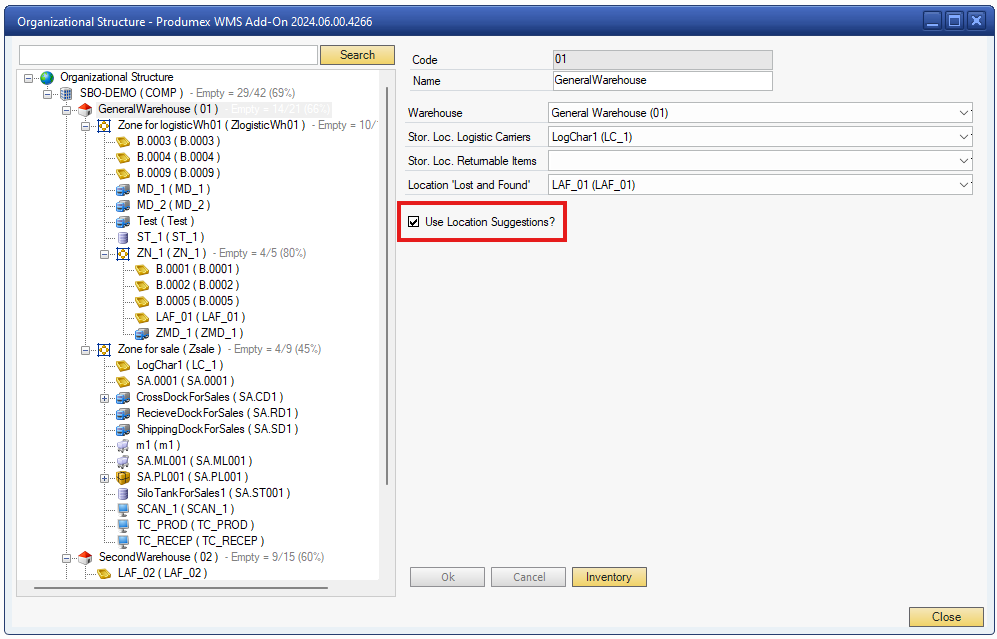
1. Make sure you enabled the “Use Location Suggestion?” option in your selected Warehouse where the preferred Zone is located for the Ad Hoc Movement. In this case I will use the GeneralWarehouse (01).
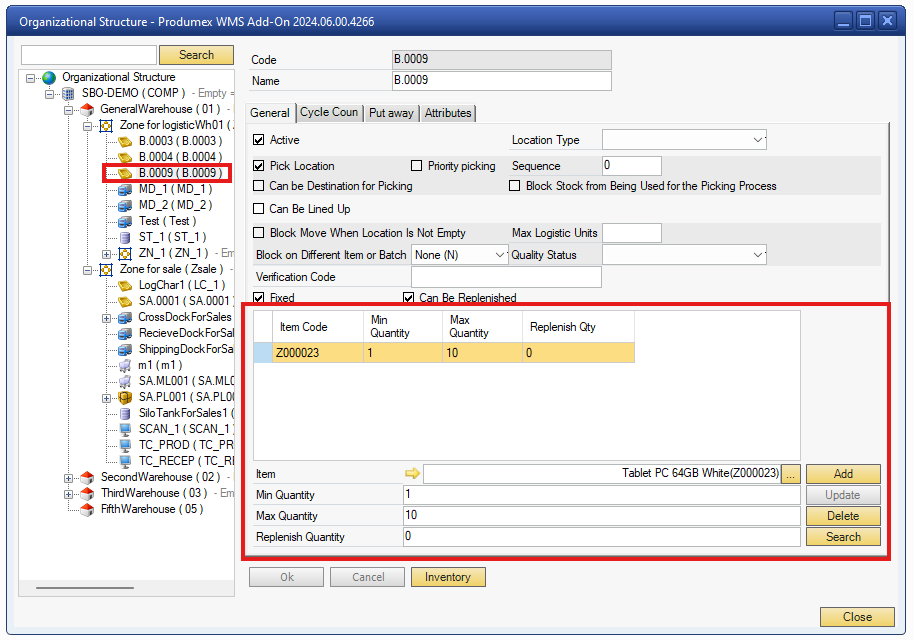
2. As a next step configurate the chosen Bin under the preferred Zone.
GeneralWarehouse (01) → Zone for logisticWh01 → B.0009
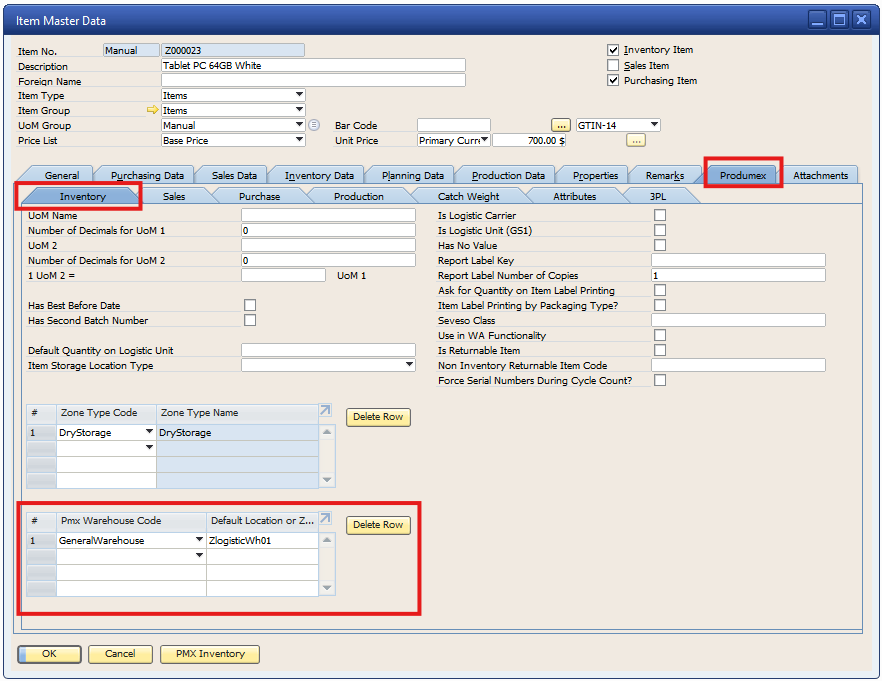
3. Select and configurate the default location on** Item Master Data → Produmex → Inventory** tab for your chosen Item.
4. Open the Mobile Client to process the Ad Hoc Movement.
Logistics → Move → Ad Hoc Movement → Local Move → Full Logistic Unit
Now “Scan an SSCC”, in the example the Item's SSCC is “00000000000000000314”.
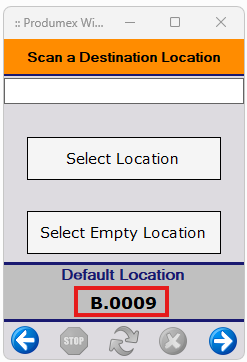
Clicking on the forward button, as expected the default location is suggested on the bottom of the Mobile Client as we configurated.
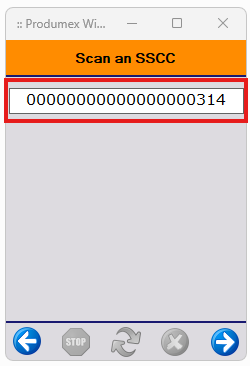
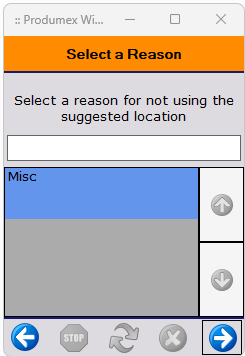
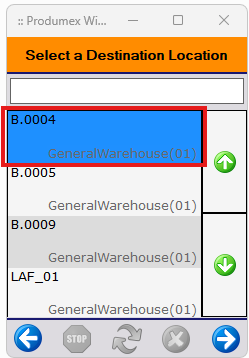
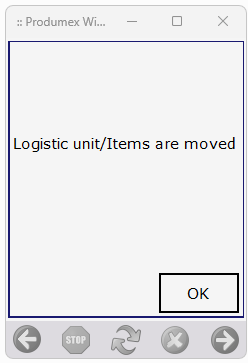
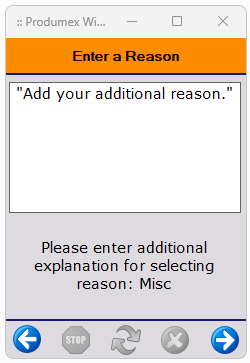
5. If you are selecting a Bin that is NOT the suggested location, the system will ask for a reason.Select and write your reason ant the Ad Hoc Movement will be done.
2.12. 3PL Invoicing tab
The 3PL Invoicing tab allows for defining the items to be used on the A/R invoices sent to the 3PL customers. 6 items can be defined, each corresponding to one type of 3PL price calculation:
- Inbound document count: price depending on the number of Goods Receipt POs
- Inbound line count: price depending on the number of lines in Goods Receipt POs
- Inbound item quantity: price depending on the item quantities received
- Outbound document count: price depending on the number of sales deliveries
- Outbound line count: price depending on the number of lines in sales deliveries
- Outbound item quantity: price depending on the item quantities delivered
Only non-inventory items can be selected and each item can be enabled or disabled. Prices corresponding to disabled items are added to the 3PL invoices.
In addition to the 6 types of 3PL price calculations, it is also possible to define 3PL price calculations based on the storage per location type. See section Location Types.

2.13. History Configuration tab
The History Configuration tab offers the possibility to define for which elements or aspects (which are stored in individual database tables) the changes have to be tracked in the context of Audit Trail.
This can be changes to characteristics of specific Organizational Structure Elements (e.g. a bin, a zone, a production line, … ) which need to be tracked, such as their name, zone type code, …
It may also be necessary to track changes to specific characteristics of items, such as e.g. the shelf life of an item for the various business partners of a company. This is shown in the example below, where it has been configured that for the table “Item shelf life for partner” it has to be recorded when the shelf life for a specific item for a specific business partner is added, updated or deleted.
These changes will then be tracked by the Produmex Office function Audit Trail.

2.14. Workflows tab
The Workflows tab of the Organizational Structure lists the workflows used by the system and makes it possible to adjust the workflows.
The the columns displayed in the table of workflows include:
- Name: Displays the name of the workflow.
- Version: Indicates the version of the workflow.
- Execution Type: Specifies the type of execution associated with the workflow.
- Objective: Provides a brief description of the workflow's purpose.
- Process Type: Indicates the related process type (e.g., inbound, outbound, production, printing).
- Details: Contains a working link to the workflow description in the wiki (if available).
- Type: Specifies the type of the workflow.
- Update Date Time: Displays the most recent update date and time of the workflow.
In the Filter field, users can narrow down their searches for Workflow scripts. the filter is not case sensitive, does not support wildcards, and has a maximum character limit of 100. As text is entered, the table will dynamically update, showing only the workflow lines where the Name column contains the entered text.
When editing a Workflow script after pressing the 'Edit Script' button, line numbers now help overseeing the code.
Modifying workflows can cause serious disruption of processes and even data corruption. Extreme Caution is advised. It is recommended that only experienced WMS Consultants attempt to modify these workflows. Boyum IT cannot be held responsible for issues resulting from externally modified workflows.

2.15. Config tab
The Config tab list some configuration that can be done for several processes and customer specific configuration can be stored here.

Google API key
- Route maps: An API key is needed to run the Google maps functionality.
- Each customer needs to get his own API key to be entered in the Google API key field.
- The Google API key must be created here and its status must be set to active.
For information about the ASOPLG and Create proposal settings click here.
For information on the Interface monitor settings click here.
2.16. Archiving tab
Produmex offers the option to manually archive data from closed documents in order to decrease database size and improve system performance.
The archiving process moves the selected data from closed documents into other tables in the same database or into a separate database, based on the configuration Archive databases and tables can be distinguished by the ‘_AR’ suffix in their name.
It is recommended to make a backup of the DB before doing the Archiving.
5.1.15.1. Configurations for archiving
Adjust the settings of the archiving process in the Archive Controller (Please see Extension Parameters / Archiving Controller).
5.1.15.2. Perform archiving
To execute the archiving process, go the Archiving tab in the Organizational Structure on the company level.
The Archive database field is prefilled based on the Use separate database setting in the Archiving Controller. When there is an _AR suffix at the end of the database name, the archiving is executed to a separate database.
The Days to keep live field is prefilled based on the Days to keep data in live database before moving to archive setting in the Archiving Controller. This number can be modified before executing the archiving.
Click on the Execute button to initiate the archiving process.

5.1.15.3. Steps before the first archiving
When executing the archiving the first time, the archiving database (if configured) and the archive tables will be created first.
Changing the Use separate database setting after the first archiving is not supported as it can cause issues.
Before creating the database and the tables, the system will ask for confirmation. Click on ‘Yes’ to proceed with the archiving.


After creating the archive tables, the system will ask for confirmation whether to continue with the archiving. Click Yes.

5.1.15.4. Archive tables
The system creates the following archive tables:
- PMX_AR_COHE
- PMX_AR_COLI
- PMX_AR_DLPL
- PMX_AR_DSST
- PMX_AR_IMHE
- PMX_AR_IMLI
- PMX_AR_INVD
- PMX_AR_LPLM
- PMX_AR_MOHE
- PMX_AR_MOLI
- PMX_AR_MVHE
- PMX_AR_MVLI
- PMX_AR_PIOP
- PMX_AR_PLHE
- PMX_AR_PLLI
- PMX_AR_PLLO
- PMX_AR_PLPH
- PMX_AR_PLPL
- PMX_AR_RTHE
- PMX_AR_RTLI
- PMX_AR_SSHH
- PMX_AR_SSHL
- PMX_AR_WAVE
- PMX_AR_WDET
5.1.15.5. Archiving process
After clicking the Execute button, the system starts the archiving. During the process, the system displays the following information:
- The time of the archiving
- The tables where the archiving was conducted
- The number of the archived documents
- The number of the live and archived picklists before and after the archiving, and the difference between them (the number of the newly archived picklists).

5.1.15.6. Archiving with a prior changeover date
Since during the archiving process only closed documents are archived, there are cases when an archiving with a longer history to keep than the previous one is desired. A confirmation window will pop up if the system finds that the new changeover date is prior to the previous one. Click OK to proceed.

5.1.15.7. Archived documents
Archived PDMX documents (move documents, picklists and picklist proposals) can be distinguished by the added ‘archived’ text in their title.
SAP navigation buttons are disabled in archived document screens.
Move screen

Pick list screen

Pick list proposal screen
