Table of Contents
Capture GRPO Images
Overview
The Image Capture allows Produmex Scan to attach photos directly to incoming logistics documents such as Goods Receipt PO and Sales Return.
Captured images are:
- Saved into SAP’s Attachment system using a structured file name format.
- Linked in Produmex Scan internal tables for reference (note: after posting, the file path is no longer stored in the Scan table).
Supported document flows:
- GRPO
- Free GRPO
- Sales Returns (SDN and SRR)
How Image Capture Works
When enabled, users can take one or more pictures directly from the scanning flow. Images are validated, saved to SAP’s attachment path, and linked to the document line.
The Image Capture process has three major steps:
- When a picture is taken, it is stored in the device’s memory.
- When the entry is created, the image is saved to the database.
- After the document is posted, the image is saved as a JPG file in the attachments folder and then it will be removed from the database.
The capture behavior depends on the warehouse setup and item type:
| Warehouse / Item Type | Capture Location |
|---|---|
| Bin-managed warehouse | Detail screen (bin/batch/serial screen) |
| Non-bin-managed warehouse + batch/serial item | Batch/serial detail screen |
| Non-bin-managed warehouse + normal item | Line screen (when line is selected) |
GR PO - Image Capturing is enabled on the Mobile Client:

Produmex Scan Settings
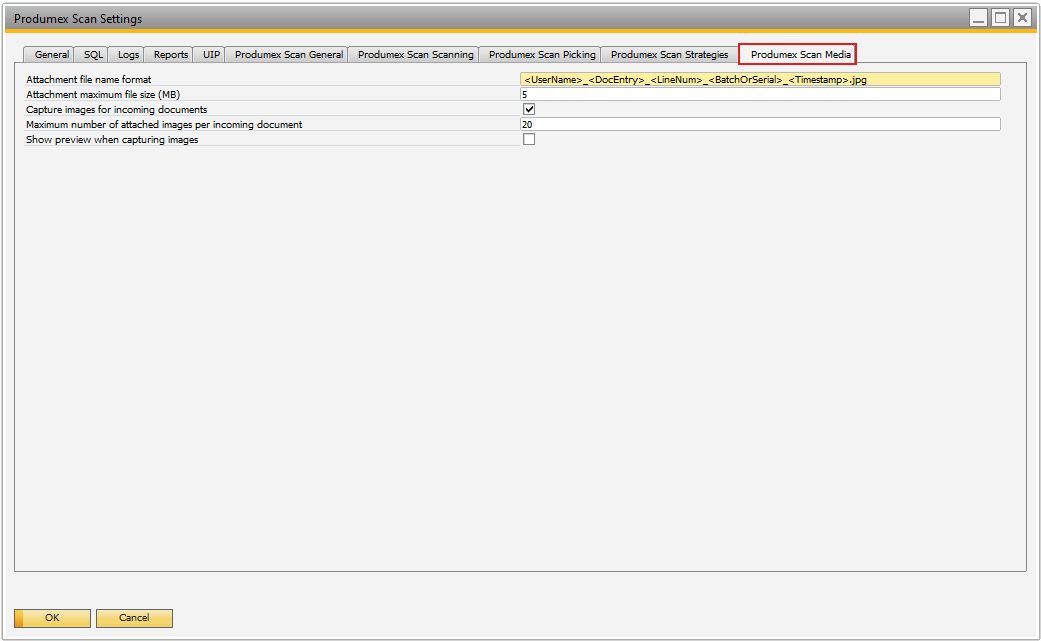
An additional setting for the image capturing called Produmex Scan Media is available on the Produmex Scan Setting screen.
This tab allows users to configure:
- Capturing behavior
- File naming conventions
- Image limits
Attachment file name format
- Default: <UserName>_<DocEntry>_<LineNum>_<BatchOrSerial>_<Timestamp>.jpg
- Defines how each attachment file is named. Unsupported characters or spaces are automatically replaced with underscores (_).
- The file name must include the following placeholders:** <UserName>, <DocEntry>, <LineNum>, and <Timestamp>**
- The order of the placeholders can be changed, and additional text can be added to the file name.
- <BatchOrSerial> is optional.
- <UserName> = Employee ID.
- <Timestamp> = UTC datetime or any other datetime that was set.
- .jpg is required.
Attachment maximum file size (MB)
- Default: 3 MB
- It can be modified, images larger than the set limit cannot be captured or uploaded.
Capture images for incoming documents
- Default: Unchecked
- When enabled, image capture becomes available for GRPO, Free GRPO, and Sales Returns flows.
Maximum number of attached images per incoming document
- Default: 20
- Restricts the total number of photos per document.
Show preview when capturing images
- Default: Checked
- The CameraApp will always display a preview before saving, regardless of this setting.
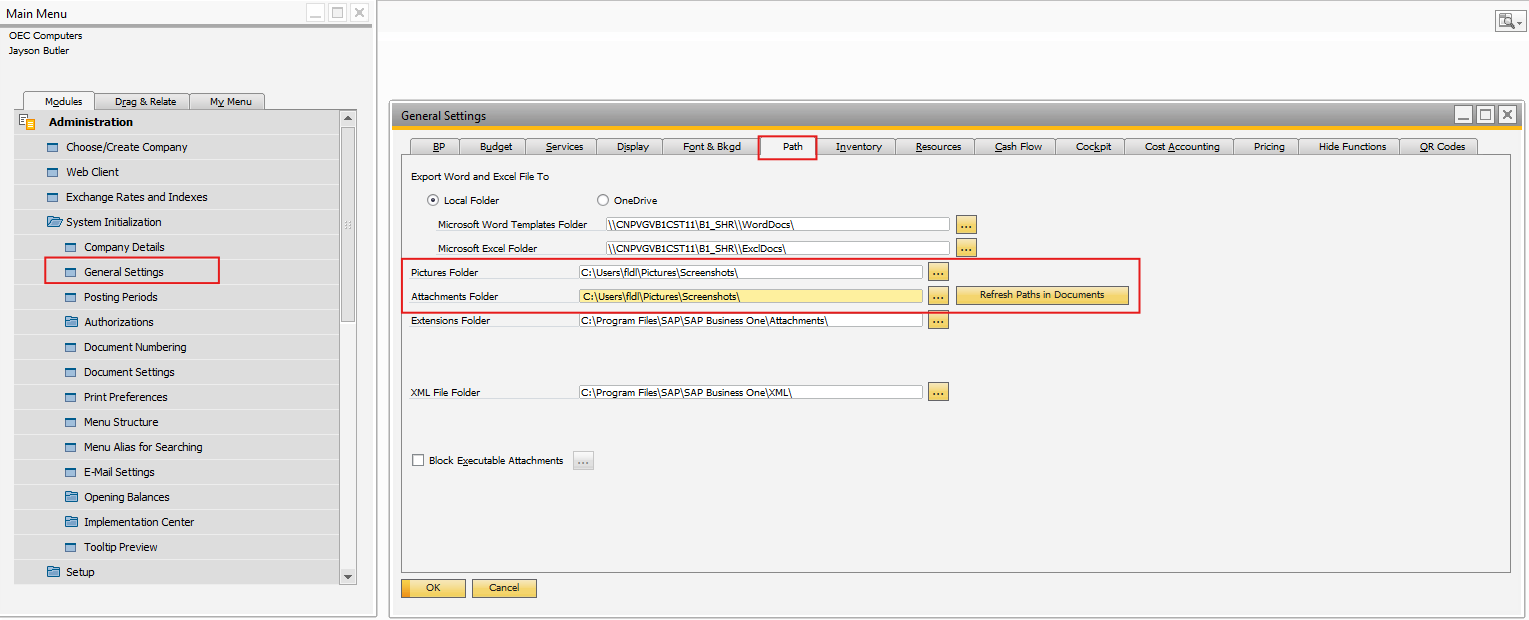
Once the document is posted, the physical file is saved under SAP General Settings → Path for Attachments. The file name is generated using the defined template, and Produmex Scan stores the final file path in its internal tables.